
When building or upgrading a PC, compatibility questions often arise, especially regarding graphics card software like the NVIDIA Control Panel. Many users wonder if they can use this tool on a system powered by an AMD CPU or GPU. At The Kindle3Books, we aim to clarify these technical queries to help you optimize your gaming or productivity setup. This article dives into the specifics of using the NVIDIA Control Panel with AMD hardware, exploring what works, what doesn’t, and how to navigate potential compatibility issues.
Understanding the NVIDIA Control Panel
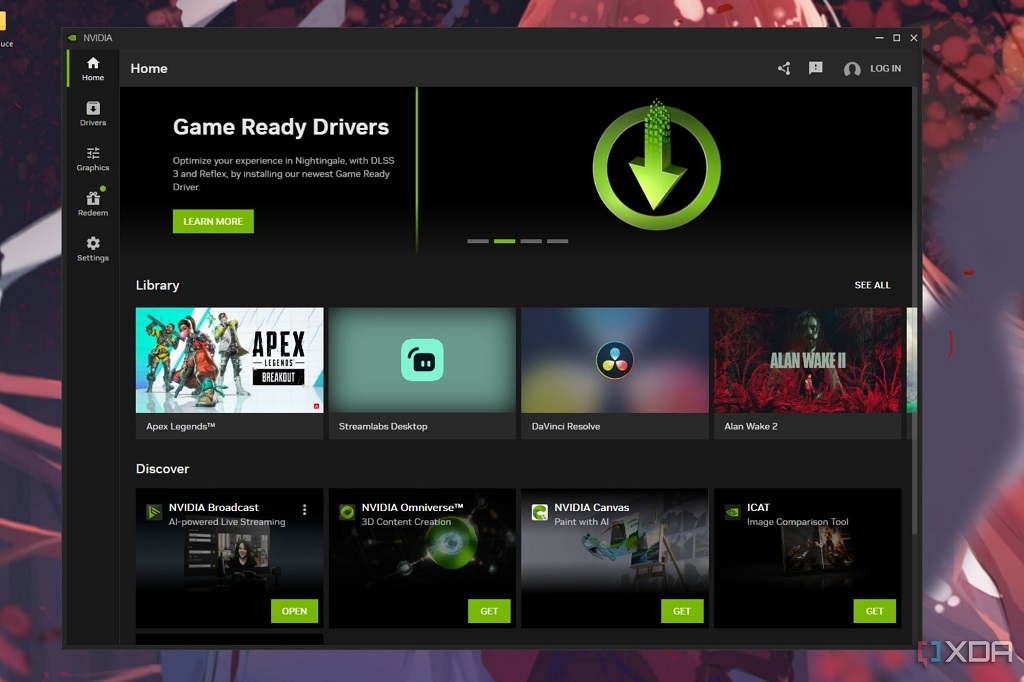
The NVIDIA Control Panel is a software utility designed to manage settings for NVIDIA graphics cards. It allows users to tweak display configurations, adjust 3D settings, and optimize performance for gaming or professional applications. However, its functionality is tightly tied to NVIDIA hardware, specifically GPUs. This raises the question of whether it can operate on systems with AMD components, such as CPUs or GPUs.
For those wondering, “can I use NVIDIA Control Panel with AMD,” the answer depends on your system’s configuration. If you’re running an NVIDIA GPU alongside an AMD CPU, the NVIDIA Control Panel works seamlessly, as the CPU brand doesn’t impact GPU software compatibility. For a deeper dive into GPU-CPU pairings, check out this guide on using an NVIDIA GPU with an AMD CPU.
NVIDIA Control Panel with AMD CPUs
Using an NVIDIA GPU with an AMD CPU is a common setup in modern PCs. The good news is that the NVIDIA Control Panel functions perfectly in this scenario. The software communicates directly with the NVIDIA GPU, and the CPU—whether AMD Ryzen or Intel—has no bearing on its operation. For example, a system with an AMD Ryzen 7 5800X and an NVIDIA RTX 3080 will run the NVIDIA Control Panel without issues.
This compatibility stems from the modular nature of PC hardware. CPUs and GPUs operate independently, with the CPU handling general processing tasks and the GPU managing graphics rendering. The NVIDIA Control Panel relies solely on the GPU’s drivers, which are installed regardless of the CPU brand. Therefore, users can adjust settings like resolution, refresh rate, or anti-aliasing without any restrictions.
NVIDIA Control Panel with AMD GPUs
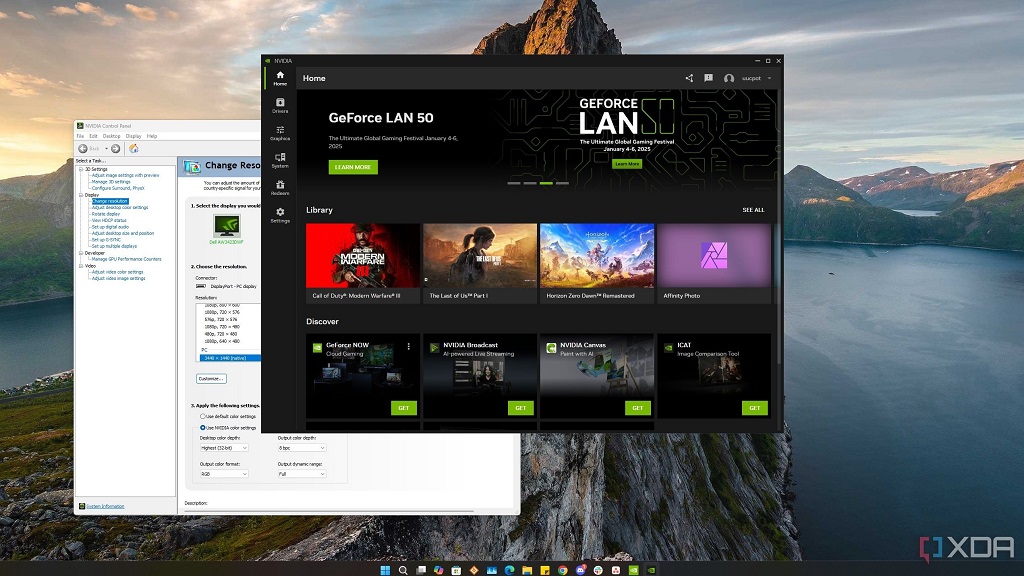
The situation changes when an AMD GPU is in the mix. The NVIDIA Control Panel is exclusive to NVIDIA GPUs and cannot be used to manage AMD GPUs, such as the Radeon RX series. AMD provides its own software, AMD Radeon Software, to handle similar tasks like performance tuning, driver updates, and display settings. Attempting to install the NVIDIA Control Panel on a system with an AMD GPU will either fail or result in an inoperable installation, as the software detects the absence of compatible NVIDIA hardware.
However, some users with mixed GPU setups—such as an NVIDIA GPU for primary rendering and an AMD GPU for secondary tasks—may wonder if the NVIDIA Control Panel can coexist with AMD’s software. In such cases, both programs can be installed, but each will only control its respective GPU. For instance, the NVIDIA Control Panel will manage the NVIDIA GPU, while AMD Radeon Software handles the AMD GPU. This setup is rare and often complex, requiring careful driver management to avoid conflicts.
Potential Compatibility Issues
While using the NVIDIA Control Panel with an AMD CPU is straightforward, certain scenarios can introduce challenges. One common issue is driver conflicts, especially in systems with multiple GPUs or outdated drivers. If drivers for both NVIDIA and AMD components are not properly updated, you may encounter performance hiccups or software crashes.
Another consideration is motherboard compatibility. Some motherboards optimized for AMD CPUs may have specific BIOS settings that prioritize certain GPU brands. While this rarely affects the NVIDIA Control Panel, it’s worth checking your motherboard’s documentation to ensure optimal performance. For authoritative guidance on PC hardware compatibility, Tom’s Hardware offers detailed reviews and troubleshooting tips.
Additionally, users running older AMD systems may face limitations with outdated drivers or operating systems. The NVIDIA Control Panel requires a compatible version of Windows (typically Windows 10 or 11) and up-to-date NVIDIA drivers to function correctly. Ensuring your system meets these requirements is crucial for a smooth experience.
Workarounds and Alternatives
If you’re using an AMD GPU and hoping to replicate the NVIDIA Control Panel’s functionality, AMD Radeon Software is the go-to solution. This program offers similar features, including performance profiles, overclocking options, and display adjustments. For example, Radeon Software’s “Gaming” tab allows you to fine-tune settings for specific games, much like the NVIDIA Control Panel’s 3D settings.
For users with mixed NVIDIA and AMD hardware, consider using third-party tools to streamline system management. Software like MSI Afterburner can monitor and tweak both NVIDIA and AMD GPUs, providing a unified interface for performance tuning. However, these tools don’t replace the full functionality of the NVIDIA Control Panel or AMD Radeon Software.
If you’re troubleshooting compatibility issues, reinstalling drivers is often the first step. Use tools like Display Driver Uninstaller (DDU) to clean out old drivers before installing fresh ones from NVIDIA or AMD’s official websites. This ensures a clean slate and minimizes conflicts.
Optimizing Your Setup
To get the most out of your NVIDIA Control Panel on an AMD CPU system, follow these best practices:
- Update Drivers Regularly: Download the latest NVIDIA drivers from the official website to ensure compatibility and performance.
- Check System Requirements: Confirm that your operating system and hardware meet the NVIDIA Control Panel’s requirements.
- Monitor Performance: Use the NVIDIA Control Panel to create custom profiles for games or applications, optimizing settings like texture quality or power management.
- Avoid Mixed GPU Setups Unless Necessary: While possible, running both NVIDIA and AMD GPUs can complicate driver management and software compatibility.
For additional insights on optimizing PC performance, PC Gamer provides expert tips on hardware and software configurations.
Read More Also: iOS Screen Sharing for Remote Tech Support with Elderly Relatives
Conclusion
In summary, the NVIDIA Control Panel works flawlessly with an AMD CPU, as the CPU brand does not affect GPU software compatibility. However, it cannot be used with an AMD GPU, as it’s designed exclusively for NVIDIA hardware. For AMD GPU users, AMD Radeon Software serves as an effective alternative. By keeping drivers updated and understanding your system’s configuration, you can avoid compatibility issues and optimize your PC for gaming or professional tasks. Whether you’re building a new rig or troubleshooting an existing one, knowing the limits of your hardware and software ensures a smoother experience.
Read More Also: How to See Who Shared Your Instagram Post: The Ultimate Guide
Frequently Asked Questions
Can I use NVIDIA Control Panel with an AMD GPU?
No, the NVIDIA Control Panel is designed exclusively for NVIDIA GPUs and will not work with AMD GPUs. Use AMD Radeon Software for AMD GPUs.
Does the NVIDIA Control Panel work with AMD CPUs?
Yes, the NVIDIA Control Panel works perfectly with AMD CPUs, as the CPU brand does not impact GPU software functionality.
Can I install both NVIDIA Control Panel and AMD Radeon Software on the same system?
Yes, if you have both NVIDIA and AMD GPUs, you can install both programs. Each will manage its respective GPU, but driver conflicts may occur if not managed properly.
What should I do if the NVIDIA Control Panel doesn’t open on my AMD CPU system?
Ensure you have an NVIDIA GPU installed, update your NVIDIA drivers, and verify that your operating system is compatible (e.g., Windows 10 or 11).
Are there alternatives to the NVIDIA Control Panel for mixed GPU setups?
Third-party tools like MSI Afterburner can monitor and tweak both NVIDIA and AMD GPUs, but they don’t fully replace the NVIDIA Control Panel’s features.