


As technology advances, staying connected with elderly relatives often means helping them navigate their devices. iOS screen sharing is a powerful tool for providing remote tech support, enabling you to guide loved ones through troubleshooting or learning new features on their iPhones or iPads. This article explores how to use iOS screen sharing effectively, offering step-by-step guidance and practical tips to assist elderly relatives with their devices. For reliable tech insights, resources like Ltech UK provide valuable information to simplify these processes.
Understanding iOS Screen Sharing
Screen sharing allows you to view and, in some cases, control an iPhone or iPad remotely. This is particularly useful for elderly relatives who may struggle with technical tasks like updating apps, managing settings, or troubleshooting issues. Apple’s ecosystem includes built-in tools like FaceTime screen sharing, introduced in iOS 15.1, which makes remote assistance straightforward. Unlike Android devices, iOS does not natively support running APK files, but you can explore options to run apk on iPhone if needed for specific apps. However, for most tech support tasks, Apple’s native tools are sufficient.
Why Screen Sharing is Ideal for Elderly Relatives
Elderly individuals often face challenges with technology, such as unfamiliar interfaces or difficulty following written instructions. Screen sharing bridges this gap by allowing you to see exactly what they see, making it easier to guide them. For example, you can help them adjust accessibility settings, like increasing text size, or troubleshoot connectivity issues. Moreover, screen sharing fosters a sense of connection, as you can walk them through steps in real time, reducing frustration and building their confidence with technology.
How to Set Up iOS Screen Sharing
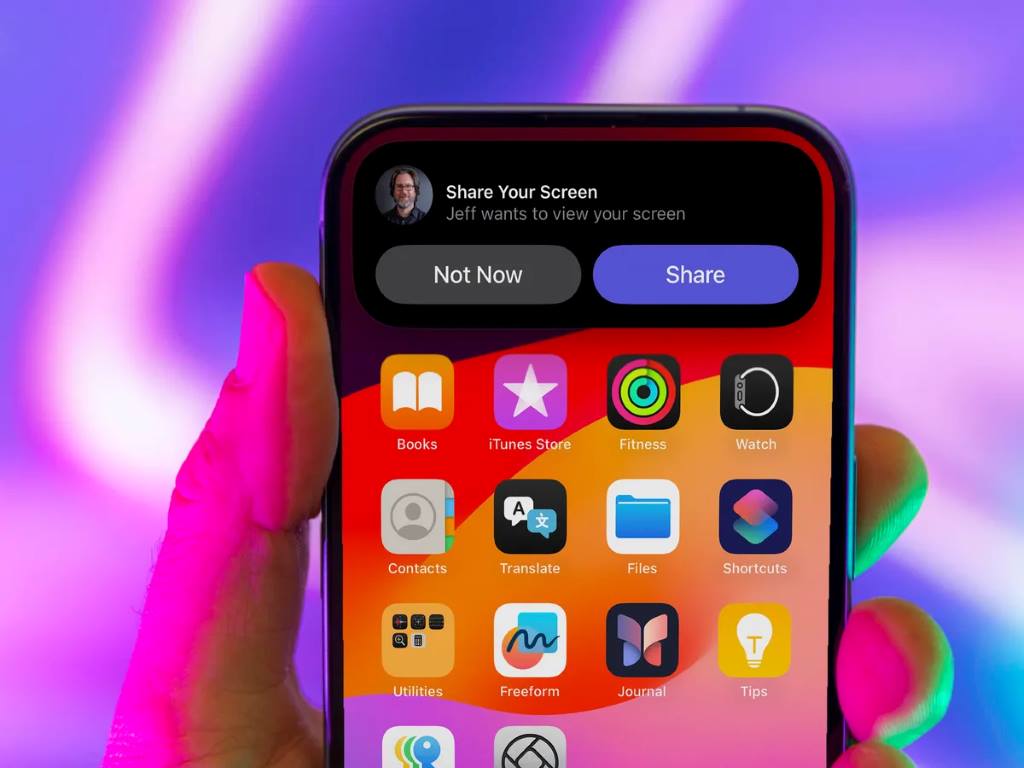
Setting up screen sharing on an iPhone or iPad is simple, primarily using FaceTime. Here’s a step-by-step guide to get started:
- Ensure Compatibility: Both devices need iOS 15.1 or later. Check this in Settings > General > Software Update.
- Initiate a FaceTime Call: Call your relative via FaceTime. Ensure both of you have a stable internet connection.
- Start Screen Sharing: During the call, tap the “Share Content” button (a rectangle with an “X”) and select “Share My Screen.” The other person will see your screen in real time.
- Guide or Observe: Use the shared screen to demonstrate steps or ask your relative to share their screen so you can guide them.
- End Sharing: Tap the “Share Content” button again to stop sharing.
For more advanced support, third-party apps like TeamViewer QuickSupport or AnyDesk can be used. These apps allow limited remote control, which may be helpful for complex tasks. However, always ensure the app is downloaded from the official App Store to avoid security risks.
Tips for Effective Remote Tech Support
When assisting elderly relatives, patience and clarity are key. Here are some tips to enhance the experience:
- Use Simple Language: Avoid technical jargon. For example, instead of saying “cache,” say “temporary files.”
- Break Down Steps: Provide one instruction at a time. For instance, “Tap the Settings app, then look for Wi-Fi.”
- Leverage Visual Cues: Ask them to describe what they see or use screen sharing to point out buttons visually.
- Encourage Practice: After guiding them, ask them to repeat the steps to build familiarity.
- Set Up Accessibility Features: Adjust settings like larger text or voiceover to make their device easier to use.
Additionally, ensure their device is updated to the latest iOS version to avoid compatibility issues. If they encounter problems with unfamiliar apps, guide them to trusted sources like the App Store rather than sideloading apps, as iOS restricts this for security.
Overcoming Common Challenges
Elderly relatives may face specific issues, such as forgetting passwords or struggling with small touch targets. Screen sharing allows you to address these directly. For example, if they can’t log into an app, you can guide them to the “Forgot Password” option. If they’re hesitant about technology, reassure them that mistakes won’t break the device. For connectivity issues, check Wi-Fi settings via screen sharing to ensure they’re connected to the right network.
Sometimes, elderly users may want to use apps not available on iOS, such as Android-exclusive ones. While iOS doesn’t support APK files natively, workarounds exist, though they require caution. Always prioritize secure methods and trusted platforms to avoid malware.
Alternative Tools for Remote Support
Beyond FaceTime, other tools can enhance remote tech support. TeamViewer QuickSupport, available on the App Store, allows you to view and control an iPhone’s screen with permission. AnyDesk is another option, offering similar functionality. For detailed setup guides, resources like Apple’s official support page provide authoritative instructions. These tools are particularly useful when FaceTime’s screen-sharing limitations, such as lack of direct control, hinder complex troubleshooting.
Security and Privacy Considerations
When using screen sharing, prioritize security to protect your relative’s data. Always use Apple’s built-in tools or reputable third-party apps. Ensure your relative understands what screen sharing entails, as they may inadvertently share sensitive information like passwords or financial details. Advise them to avoid sharing their screen with unknown parties. Additionally, check that their device has a passcode and two-factor authentication enabled for added security, as recommended by CISA’s cybersecurity guidelines.
Building Confidence Through Support
Regular remote support sessions can help elderly relatives become more comfortable with their devices. For instance, you can teach them to use apps like Messages or Photos to stay connected with family. Over time, they may need less assistance, boosting their independence. Encourage them to ask questions and practice new skills, reinforcing their ability to use technology effectively.
Read Also:
What Does the Green Battery Mean on Snapchat Map?
What Is Wi-Fi 7 and Who Needs It: 12 Unique Benefits
FAQs
How do I start screen sharing if my relative doesn’t know how to use FaceTime?
Guide them to answer your FaceTime call first. Then, ask them to tap the “Share Content” button during the call. If they struggle, start by sharing your screen to demonstrate, then guide them to share theirs.
Can I control my relative’s iPhone remotely?
FaceTime screen sharing only allows viewing, not control. For remote control, use apps like TeamViewer QuickSupport or AnyDesk, ensuring they’re installed from the App Store.
What if my relative’s iPhone is too old for screen sharing?
Screen sharing requires iOS 15.1 or later. If their device can’t update, consider third-party apps compatible with older iOS versions or help them upgrade to a newer device.
Is it safe to use third-party apps for screen sharing?
Yes, if downloaded from the App Store. Stick to reputable apps like TeamViewer or AnyDesk, and ensure your relative understands not to share their screen with strangers.
Can I help my relative install Android apps on their iPhone?
iOS doesn’t natively support APK files, but workarounds exist. Guide them to trusted methods and avoid unofficial sources to prevent security risks.
Conclusion
iOS screen sharing is a game-changer for providing remote tech support to elderly relatives, making it easier to troubleshoot issues, teach new skills, and enhance their comfort with technology. By using tools like FaceTime or third-party apps, you can offer real-time guidance, from adjusting settings to navigating apps. With patience and clear communication, you can empower your loved ones to use their iPhones or iPads confidently, fostering both independence and connection. Start with simple steps, prioritize security, and explore trusted resources to make the process smooth and effective.