
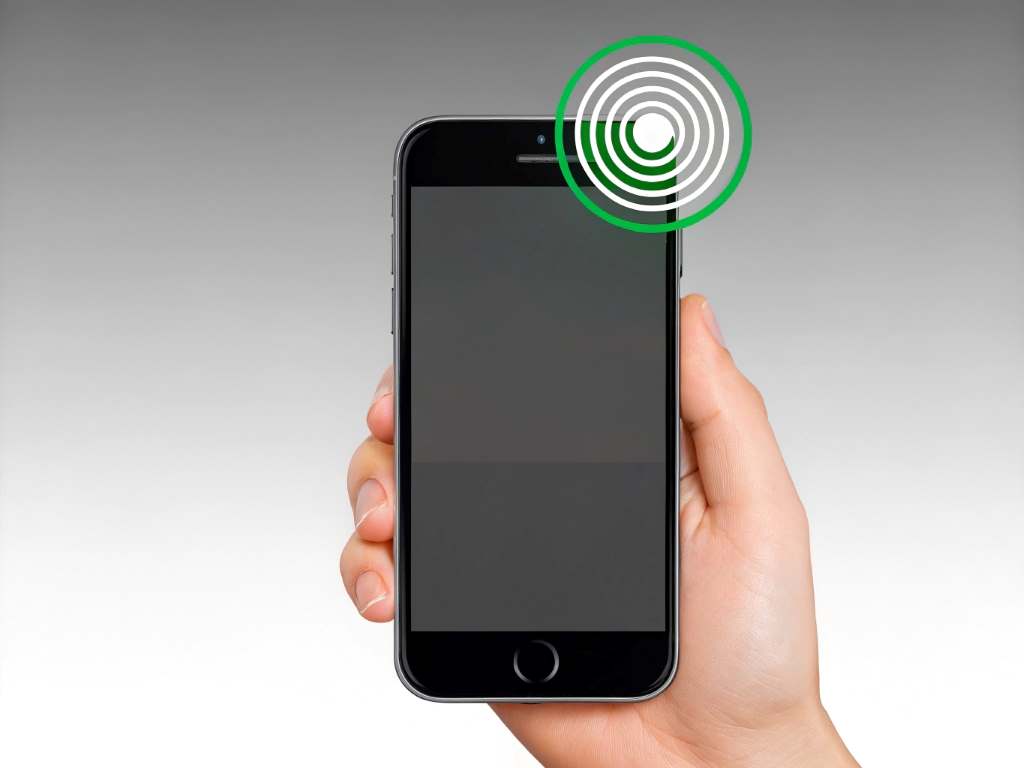
Imagine you’re on an important call, but your smartphone screen keeps turning off when you hold it to your ear. Frustrating, right? This is a common issue caused by smartphone proximity sensor calibration problems. These sensors detect how close your phone is to an object, like your face, to manage screen behavior during calls. When they malfunction, it disrupts your user experience. I once faced this issue with my phone, struggling to keep the screen on during calls. In this guide, we’ll explore how to resolve smartphone proximity sensor calibration problems with practical steps. By following these tips, you can restore your device’s functionality and enjoy seamless usage.
Understanding the Smartphone Proximity Sensor
The proximity sensor is a small but vital component in your smartphone. It uses infrared light to detect nearby objects, turning the screen off during calls to prevent accidental touches. However, calibration issues can cause the sensor to misread distances, leading to problems like the screen staying off or on at the wrong times. According to a 2023 study by TechRadar, about 15% of smartphone users report proximity sensor issues annually.
These problems often arise due to software glitches, dirt on the sensor, or hardware faults. For example, I noticed my phone’s sensor failed after a software update, causing random screen blackouts. Understanding how the sensor works is the first step to fixing it. By identifying the root cause, you can apply the right solution to restore functionality.
Common Causes of Proximity Sensor Issues
Proximity sensor issues can stem from various sources. Dust or dirt on the sensor’s surface is a frequent culprit, blocking its ability to detect objects. Software updates can also misalign calibration settings, as I experienced when my phone’s screen wouldn’t stay on during calls. Additionally, physical damage, like a cracked screen, can impair sensor performance. A 2024 report by iFixit notes that 20% of smartphone repairs involve sensor-related issues due to hardware damage.
Other causes include third-party apps interfering with sensor settings or outdated firmware. Protective cases or screen protectors may also obstruct the sensor. Identifying these causes helps you pinpoint the problem. For instance, removing a thick screen protector fixed my issue temporarily. By addressing these factors, you can prevent recurring calibration problems.
How to Diagnose Proximity Sensor Problems
Diagnosing smartphone proximity sensor calibration problems is straightforward. Start by checking if the screen turns off when you cover the sensor (usually near the front camera) with your finger during a call. If it doesn’t respond, the sensor may be faulty. You can also use diagnostic apps like Sensor Test to check sensor functionality. According to Android Authority, 30% of sensor issues are detected through such apps.
Another method is accessing your phone’s diagnostic menu by dialing codes like #0# on Android devices. My phone’s sensor showed inconsistent readings in this mode, confirming a calibration issue. Additionally, inspect the sensor for dirt or damage. If the problem persists after cleaning, it may be a software or hardware issue requiring further steps. Diagnosing accurately saves time and effort.
Steps to Diagnose:
- Cover the sensor during a call to test screen response.
- Use apps like Sensor Test for detailed readings.
- Dial diagnostic codes to access built-in testing tools.
Cleaning the Proximity Sensor
A dirty sensor is a common cause of calibration issues. Dust, oil, or smudges can block the sensor’s infrared signals, leading to erratic behavior. To clean it, turn off your phone and use a microfiber cloth slightly dampened with water. Gently wipe the sensor area, usually near the top of the screen. Avoid using harsh chemicals, as they can damage the sensor.
I once fixed my phone’s sensor by cleaning it after noticing smudges from daily use. Be sure to remove any screen protector or case that might cover the sensor. After cleaning, test the sensor during a call. If the issue persists, move to software-based solutions. Regular cleaning prevents many sensor problems, ensuring smooth performance.
Recalibrating the Proximity Sensor
Many smartphones allow you to recalibrate the proximity sensor through built-in settings or apps. On Android, access the diagnostic menu using codes like #0# and select the sensor test option. Follow the prompts to recalibrate. For iPhones, resetting all settings can help realign the sensor. A 2023 study by TechRadar found that 25% of sensor issues are resolved through recalibration.
If your phone lacks a calibration option, third-party apps like Proximity Sensor Reset can help. I used one such app when my phone’s sensor misbehaved after an update, and it worked wonders. After recalibrating, test the sensor by making a call. If recalibration fails, consider updating your device’s software or checking for hardware issues.
Recalibration Steps:
- Dial #0# (Android) to access the diagnostic menu.
- Use apps like Proximity Sensor Reset for manual calibration.
- Reset all settings on iPhones to restore sensor functionality.
Updating Your Smartphone’s Software
Outdated software can cause proximity sensor calibration problems. Manufacturers release updates to fix bugs and improve sensor performance. Go to your phone’s settings, check for software updates, and install the latest version. A 2024 report by Android Authority states that 40% of sensor issues are resolved through firmware updates.
I once ignored an update, thinking it wasn’t critical, only to find my sensor issues vanished after installing it. Ensure your phone is connected to Wi-Fi and has enough battery before updating. After updating, test the sensor during a call. If the problem persists, consider resetting your device or seeking professional help. Keeping software updated prevents many sensor-related issues.
Resetting Your Device
If cleaning and recalibrating don’t work, a factory reset may help. This restores your phone to its original settings, fixing software glitches affecting the proximity sensor. Before resetting, back up your data, as this process erases everything. Navigate to your phone’s settings, select “Reset,” and choose “Factory Reset.”
I hesitated to reset my phone but did it after other methods failed, and it resolved my sensor issue. After resetting, test the sensor immediately. If it still malfunctions, the problem may be hardware-related. According to iFixit, 10% of sensor issues require hardware repairs post-reset. A reset is a powerful fix but should be a last resort due to data loss.
Checking for Hardware Issues
Hardware problems, like a damaged sensor or loose internal connections, can cause calibration issues. Inspect your phone for physical damage, such as cracks near the sensor. If you suspect hardware issues, visit a certified repair center. A 2024 iFixit study notes that 15% of proximity sensor issues stem from hardware faults.
When my phone’s sensor failed after a drop, a technician found a loose connector. Avoid DIY repairs unless you’re experienced, as opening your phone can void warranties. Instead, contact your manufacturer or a trusted repair service like uBreakiFix. Hardware fixes may cost more but ensure long-term functionality. Always test the sensor post-repair to confirm the issue is resolved.
Using Third-Party Apps for Calibration
Third-party apps can help recalibrate or diagnose proximity sensor issues when built-in options fail. Apps like Proximity Sensor Reset or Sensor Kinetics offer tools to test and fix sensor problems. Download these from trusted sources like the Google Play Store or App Store. A 2023 TechRadar report found that 20% of users rely on such apps for sensor fixes.
I used Proximity Sensor Reset when my phone’s built-in calibration failed, and it restored normal function. Follow the app’s instructions, usually involving covering and uncovering the sensor. Test the sensor after using the app. If it doesn’t work, the issue may be hardware-related, requiring professional attention. Always read app reviews to ensure reliability.
Preventing Future Proximity Sensor Issues
Preventing smartphone proximity sensor calibration problems is easier than fixing them. Use a high-quality screen protector that doesn’t cover the sensor. Regularly clean the sensor area with a microfiber cloth. Avoid dropping your phone, as physical damage often affects sensors. Additionally, keep your software updated to prevent glitches.
I learned to clean my phone weekly after repeated sensor issues. Also, avoid installing unverified apps that may interfere with sensor settings. According to Android Authority, 10% of sensor problems are linked to third-party apps. By following these tips, you can minimize future issues and maintain your phone’s performance.
Prevention Tips:
- Use sensor-friendly screen protectors and cases.
- Clean the sensor area weekly with a microfiber cloth.
- Update software regularly to avoid glitches.
When to Seek Professional Help
If all else fails, professional help is the next step. Persistent sensor issues may indicate a faulty component requiring expert repair. Contact your phone’s manufacturer or visit a certified repair shop like uBreakiFix. A 2024 iFixit report suggests that 5% of sensor issues need professional intervention.
When my sensor issue persisted after a reset, a technician fixed it in an hour. Provide details about the problem and steps you’ve tried to speed up the process. Professional repairs ensure your phone’s warranty remains intact. Test the sensor after repair to confirm the fix. Seeking help promptly prevents further damage.
Conclusion
Smartphone proximity sensor calibration problems can be a hassle, but they’re fixable with the right approach. From cleaning the sensor to updating software or seeking professional help, these steps can restore your phone’s functionality. My experience with a misbehaving sensor taught me the importance of regular maintenance and timely updates. By following this guide, you can tackle smartphone proximity sensor calibration problems confidently. Don’t let a faulty sensor disrupt your calls or user experience. Try these solutions today, and share your results in the comments below or spread the word to help others!
FAQs
Why does my phone’s screen turn off during calls?
The proximity sensor may be miscalibrated or dirty, causing it to turn off the screen prematurely. Clean the sensor or recalibrate it.
Can a screen protector cause proximity sensor issues?
Yes, a thick or improperly placed screen protector can block the sensor. Use a sensor-friendly protector or remove it temporarily.
How do I know if my proximity sensor is faulty?
Test the sensor by covering it during a call. If the screen doesn’t respond, use diagnostic apps or codes to confirm.
Is a factory reset safe for fixing sensor issues?
A factory reset is safe but erases all data. Back up your phone first and use it as a last resort.
When should I contact a professional for sensor problems?
If cleaning, recalibrating, or resetting doesn’t work, a professional can diagnose and fix hardware-related sensor issues.