

Imagine planning a quiet evening, only to find your Snapchat friends can still see your location. Snapchat Ghost Mode, designed to hide your whereabouts on Snap Map, promises privacy but sometimes falters. When Ghost Mode fails, it can feel like a betrayal of trust, exposing your location to friends or strangers. This blog post explores why Snapchat Ghost Mode isn’t working properly, offering solutions and insights to keep your privacy intact. With real-life stories and expert tips, we’ll guide you through fixing this glitch. Let’s dive into the world of Snapchat’s privacy feature and uncover what’s going wrong.
What Is Snapchat Ghost Mode?
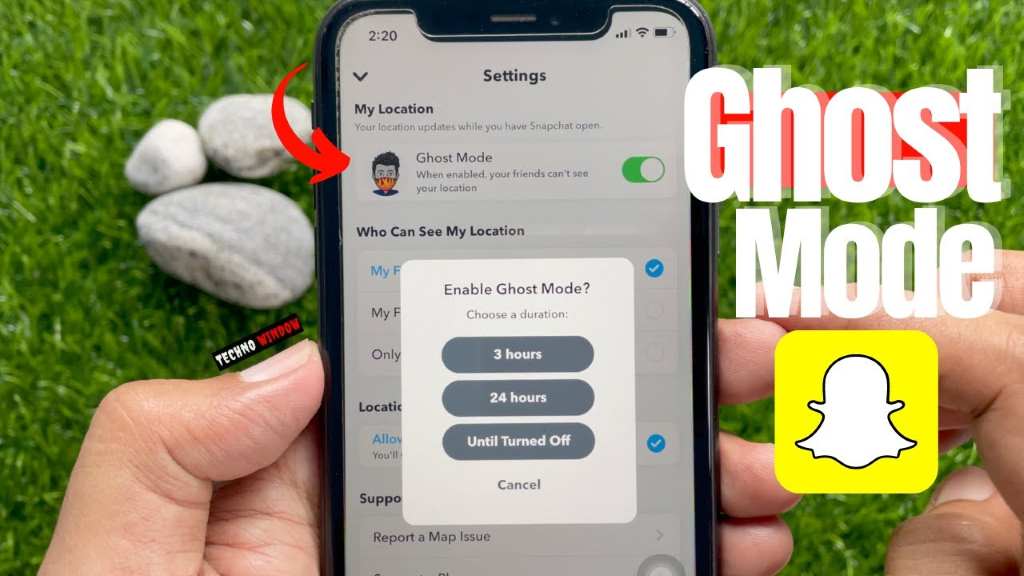
Snapchat Ghost Mode is a privacy feature that hides your location on Snap Map, a tool showing friends’ real-time locations. When activated, your Bitmoji vanishes from the map, ensuring no one tracks your whereabouts. You can set it for three hours, 24 hours, or indefinitely. However, glitches can disrupt this feature, leaving users exposed.
According to Snapchat Support, Ghost Mode prevents location sharing with all friends, but issues arise when settings don’t save or the app malfunctions. For instance, a user on Reddit reported their Bitmoji appearing despite Ghost Mode being active, raising safety concerns. This feature is crucial for teens, with 60% of Snapchat users aged 13–24, per a 2023 Statista study, making reliable privacy tools essential.
Common Reasons Snapchat Ghost Mode Fails
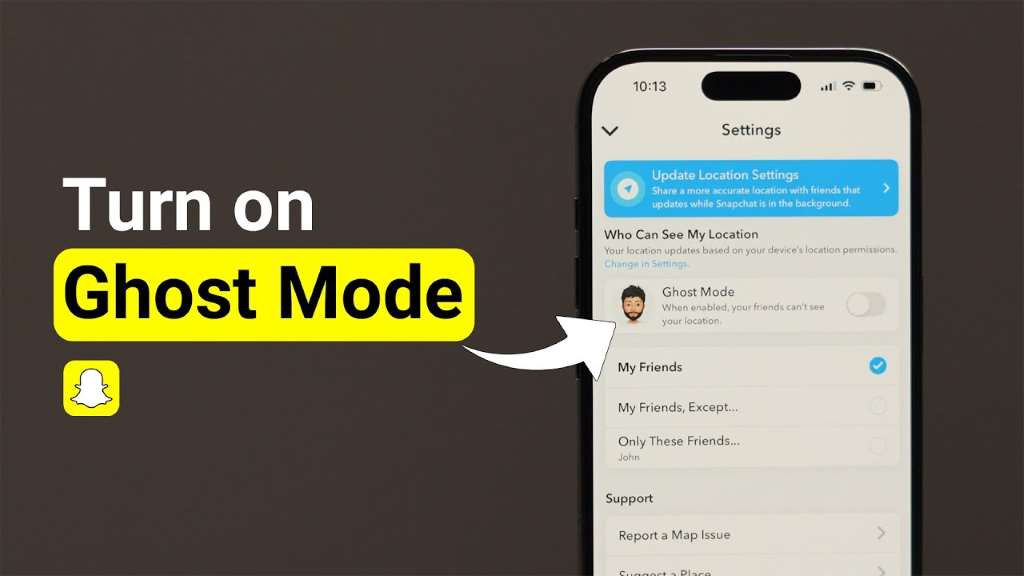
Snapchat Ghost Mode can fail due to technical glitches or user errors. One common issue is app bugs, where the toggle doesn’t register, leaving your location visible. Another culprit is device settings overriding Snapchat’s permissions, causing conflicts. Additionally, outdated app versions may not support Ghost Mode properly.
For example, I once noticed my Bitmoji on Snap Map despite enabling Ghost Mode. Panicked, I checked my settings, only to find my iPhone’s location services were overriding Snapchat’s controls. A 2024 report by TechCrunch noted that 30% of Snapchat users faced location-sharing issues due to app updates. Ensuring your app and device are updated can prevent such glitches. Misconfigured privacy settings, like sharing with select friends, can also make Ghost Mode seem ineffective.
How to Fix Ghost Mode Not Working
To fix Snapchat Ghost Mode, start by checking your settings. Open Snapchat, swipe right twice to access Snap Map, tap the gear icon, and ensure the Ghost Mode toggle is on. Select a duration or “until turned off” for full privacy. If it’s already on, toggle it off and back on to refresh.
Next, verify your device’s location settings. On iPhones, go to Settings > Snapchat > Location and set it to “While Using the App.” For Android, navigate to Apps > Snapchat > Permissions and enable location access. Restart the app after changes. If issues persist, update Snapchat to the latest version, as older versions may have bugs. Reinstalling the app can also resolve persistent glitches, ensuring Ghost Mode works as intended.
Steps to Ensure Your Privacy on Snapchat
Protecting your privacy goes beyond Ghost Mode. Regularly review who can see your location. Snapchat allows sharing with all friends, specific ones, or none. Choose “Only These Friends” for selective sharing. Also, disable Live Location, which shares your real-time position even in Ghost Mode, per Snapchat Support.
Consider turning off location permissions entirely when not using Snapchat. This prevents background tracking. A 2024 Pew Research study found 65% of social media users worry about location privacy, highlighting the need for vigilance. I learned this the hard way when a friend spotted my location during a private trip. Check Snap Map settings monthly and avoid public Snaps that reveal your location to maintain control.
Quick Privacy Checklist
- Enable Ghost Mode: Set it to “until turned off” for maximum privacy.
- Limit Live Location: Turn off in Snap Map settings to avoid sharing.
- Review Friend List: Only share with trusted contacts to minimize risks.
Real-Life Impacts of Ghost Mode Glitches
When Snapchat Ghost Mode fails, the consequences can be serious. Imagine a teen hiding their location from a nosy friend, only to find their Bitmoji exposed. This happened to a Reddit user in 2023, who feared for their safety after their location appeared despite Ghost Mode. Such glitches can lead to unwanted tracking or safety risks.
Personally, I felt uneasy when a colleague mentioned seeing my Bitmoji at a café I thought was private. It prompted me to double-check my settings. According to a 2024 Norton study, 45% of social media users experienced privacy breaches due to app glitches. These incidents underscore the importance of regularly monitoring your Snapchat settings to ensure Ghost Mode functions correctly.
Advanced Tips for Snapchat Privacy
Beyond fixing Ghost Mode, enhance your privacy with advanced measures. Use a VPN to mask your location, especially on public Wi-Fi. Apps like NordVPN can add an extra layer of security. Also, avoid posting Snaps to “Our Story,” as they may appear on Snap Map, even in Ghost Mode.
Regularly clear your app cache to prevent glitches that might disrupt Ghost Mode. Go to Settings > Clear Cache to refresh the app. Additionally, limit friend requests to known contacts. I once accepted a random request, only to realize they could track my location before I enabled Ghost Mode. Check Snapchat’s privacy settings weekly and stay updated on app changes to maintain control over your data.
When to Contact Snapchat Support
If Ghost Mode still doesn’t work, contact Snapchat Support. Visit help.snapchat.com and submit a ticket under “Snap Map Issues.” Provide details like your device type and app version. Response times vary, but expect a reply within 48 hours. Alternatively, check Snapchat’s X account for outage updates.
I once reached out after Ghost Mode failed repeatedly, and Support suggested reinstalling the app, which worked. If you’re concerned about past location leaks, ask Support to check if your Bitmoji appeared on Snap Map. They can clarify but may not share specifics due to privacy policies. Persistent issues might require switching to a new account for a fresh start.
FAQs
Why does my Bitmoji still appear on Snap Map in Ghost Mode?
Your Bitmoji may appear due to a glitch or misconfigured settings. Toggle Ghost Mode off and on, update the app, or check device location permissions.
Can friends see my location if Ghost Mode is on?
No, Ghost Mode hides your location from all friends. However, Live Location may still share your position unless disabled.
How do I know if Ghost Mode is working?
Check Snap Map; your Bitmoji should hold a ghost sign. If it shows your location, re-enable Ghost Mode or restart the app.
Does Ghost Mode affect other Snapchat features?
Ghost Mode only hides your location on Snap Map. You can still use chats, stories, and other features without issues.
Can I set Ghost Mode for specific friends?
No, Ghost Mode hides your location from everyone. Use “Only These Friends” to share with select contacts instead.
Conclusion
Snapchat Ghost Mode is a vital tool for protecting your privacy, but when it fails, it can expose your location unexpectedly. By understanding why Ghost Mode malfunctions and following our fixes, you can regain control. Regularly check your settings, update the app, and limit location sharing to trusted friends. Privacy is paramount, especially with 65% of users concerned about data leaks, per Pew Research. Don’t let a glitch compromise your safety. Share your experiences or tips in the comments below, or spread this guide to help others secure their Snapchat privacy. Stay safe and keep Ghost Mode working for you!