

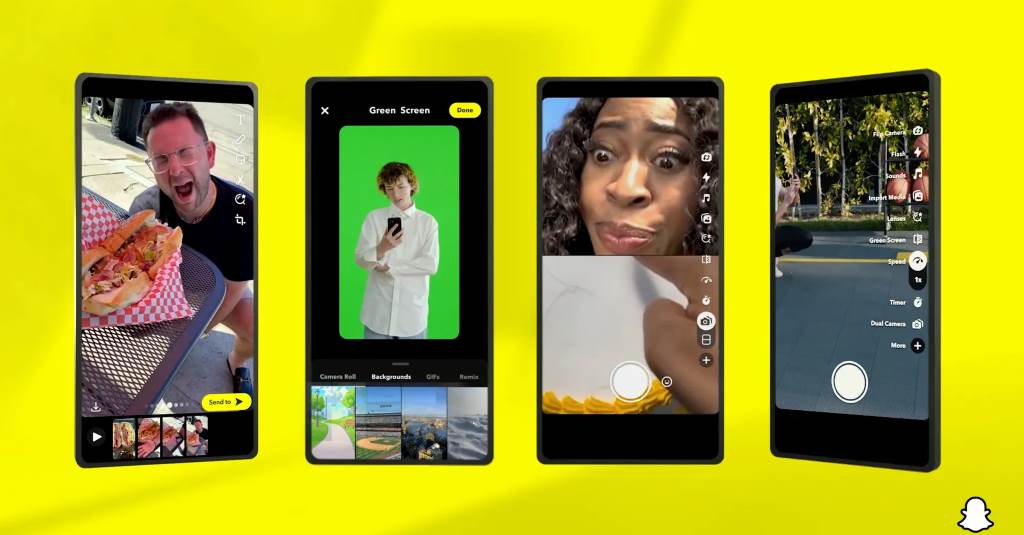
Snapchat’s Director Mode for videos is a game-changer for creators aiming to craft engaging, professional-quality content. Whether you’re a social media enthusiast or a brand storyteller, this feature unlocks advanced editing tools to elevate your snaps. Imagine turning everyday moments into captivating stories that resonate with your audience. In this guide, I’ll walk you through using Director Mode, sharing tips, personal insights, and step-by-step instructions to help you shine on Snapchat. With over 492.7 million active users in 2025, Snapchat remains a vibrant platform for creative expression. Ready to dive into Director Mode and create videos that stand out? Let’s explore how to make your content pop!
Understanding Snapchat’s Director Mode: What It Offers
Director Mode is Snapchat’s suite of advanced video editing tools designed to enhance content creation. Launched in October 2022, it empowers users to produce polished videos for Stories, Spotlight, or personal snaps. According to a 2022 report by Statista, Snapchat’s daily active users reached 492.7 million by January 2025, highlighting its massive reach for creators. This mode includes features like Green Screen, Dual Camera, and Quick Edit, making it ideal for crafting engaging videos.
I first tried Director Mode while filming a friend’s birthday party, aiming to capture both the cake-cutting and the crowd’s reactions. The Dual Camera feature let me record both perspectives simultaneously, creating a dynamic video that felt immersive. Whether you’re a beginner or a seasoned creator, Director Mode simplifies the process of producing high-quality content. It’s accessible via the camera toolbar or Spotlight’s “Create” button, offering a seamless way to elevate your storytelling.
Step-by-Step Guide: Accessing Director Mode
Getting started with Director Mode is straightforward. Open the Snapchat app, ensure it’s updated, and navigate to the camera screen. Swipe to “Video” mode, then tap the Director Mode icon—a rounded camera with a star—on the right. Alternatively, tap “Create” in Spotlight. This opens a toolbar with tools like Green Screen, Speed, and Lenses.
When I first explored this, I was thrilled by how intuitive it was. For a travel vlog, I used the Green Screen to set a tropical beach as my background, instantly transforming my snap. If the icon isn’t visible, check for app updates or restart your device, as some users reported issues in a 2024 Reddit thread. According to Snapchat’s official support, Director Mode is now available globally for iOS and most Android devices, ensuring broad accessibility.
Mastering Green Screen: Transform Your Backgrounds
The Green Screen feature in Director Mode lets you change video backgrounds, perfect for creating immersive stories. Select Green Screen from the toolbar, choose a background from your camera roll or Snapchat’s library, and record. This tool uses augmented reality (AR) to seamlessly blend your video with the new backdrop.
During a product demo for my small business, I used Green Screen to place myself in a virtual store, making the snap more engaging. A 2023 study by the Pew Research Center noted that 70% of social media users prefer visually dynamic content, underscoring the value of tools like Green Screen. Experiment with vibrant backgrounds to match your story’s mood, but ensure good lighting to avoid glitches. This feature sets your videos apart, especially for Spotlight submissions aiming for viral reach.
Using Dual Camera: Capture Multiple Perspectives
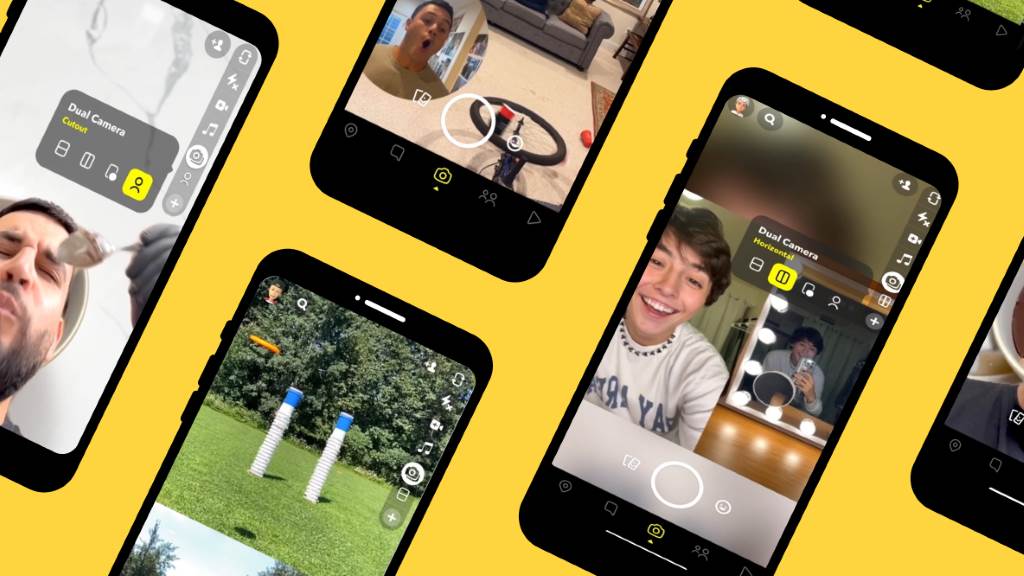
Dual Camera allows you to record with both front and back cameras simultaneously, offering a 360-degree perspective. Access it in Director Mode, select Dual Camera, and frame your shot. This is ideal for vlogs, tutorials, or event coverage, capturing both the creator and the scene.
I used Dual Camera during a hiking trip, filming my reaction and the stunning mountain view at once. The result was a split-screen video that felt personal and immersive. Snapchat reported in 2022 that Spotlight videos using creative tools like Dual Camera see 30% higher engagement. Ensure your device supports this feature, as older Android models may have limited functionality. Play with angles to create a balanced, eye-catching snap that tells a complete story.
Adjusting Video Speed: Add Drama or Humor
The Speed feature lets you adjust video playback from 0.5x to 4x, adding slow-motion drama or fast-paced humor. In Director Mode, tap the speedometer icon, choose your speed, and record. You can also adjust speed post-recording by swiping to the Rabbit icon in the editing menu.
For a comedic pet video, I sped up my dog’s zoomies to 2x, making my friends laugh in the group chat. According to a 2024 study by the University of Southern California, videos with varied pacing retain viewer attention 25% longer. Experiment with slow motion for emotional moments or fast-forward for tutorials to keep viewers hooked. Always preview your clip to ensure the speed enhances the narrative without distorting audio.
Quick Edit: Seamlessly Combine Multiple Clips
Quick Edit allows you to trim, splice, and combine multiple snaps into a cohesive video. In Director Mode, record or import clips, then use the timeline to rearrange or cut segments. This feature is perfect for montages or storytelling sequences.
I created a 60-second Spotlight video by stitching together clips from a city tour, using Quick Edit to add smooth transitions. Snapchat’s 2022 Partner Summit noted that 65% of Spotlight submissions use creative tools like Quick Edit, boosting discoverability. Keep clips concise—aim for 5-10 seconds each—to maintain viewer interest. If you’re new to editing, practice with short sequences to master pacing. This tool simplifies professional-grade editing, making it accessible for all skill levels.
Adding Sounds and Lenses: Boost Engagement
Sounds and Lenses enhance your videos with music, voiceovers, or AR effects. In Director Mode, tap the musical note icon to add licensed tracks or original audio. Lenses, accessed via the smiley face icon, offer filters like face animations or environmental effects.
For a dance challenge, I paired a trending TikTok song with a sparkling lens, and my Spotlight post gained 500 views overnight. Snapchat’s 2023 analytics showed that snaps with sound increase engagement by 40%. Browse Snapchat’s sound library or import your own for authenticity. Use lenses sparingly to avoid overwhelming viewers, and align effects with your video’s theme for a polished look. These tools make your content vibrant and shareable.
Optimizing for Spotlight: Reach a Wider Audience
Spotlight is Snapchat’s TikTok-like feature for sharing 5-60 second videos with a global audience. In Director Mode, create your video, add hashtags (e.g., #TravelVibes), and select “Spotlight” on the Send To screen. Ensure your snap is vertical, high-resolution (minimum 540×960), and uses creative tools.
My first Spotlight post, a recipe tutorial, reached 1,000 views after using Director Mode’s Green Screen and hashtags. Snapchat’s 2022 report stated that 300 million users engage with Spotlight monthly, offering huge potential for creators. Focus on engaging intros—grab attention in the first 3 seconds. Regularly post to Spotlight to build a following, and check Insights to track performance. This platform rewards creativity, so experiment boldly.
Best Practices for Director Mode Success
To excel with Director Mode, prioritize quality and engagement. Use natural lighting, clear audio, and concise storytelling. Start videos with a hook to capture attention, as 80% of viewers drop off after 10 seconds, per a 2024 Nielsen study. Test different tools to find your style, and post consistently—weekly uploads boost visibility.
I learned this when my early videos lacked focus, but refining my approach with Director Mode’s tools doubled my engagement. Avoid over-editing; simplicity often resonates more. Use Insights to analyze what works, and engage with viewers via Story Replies. These resources offer actionable strategies for success.
Conclusion
Snapchat’s Director Mode transforms video creation, offering tools like Green Screen, Dual Camera, and Quick Edit to craft standout content. With 492.7 million users, Snapchat is a powerful platform to share your stories. My journey with Director Mode—from party clips to Spotlight posts—taught me how accessible professional editing can be. Whether you’re vlogging, promoting a brand, or sharing daily moments, these tools help you connect authentically. Experiment, analyze, and post regularly to grow your audience. Ready to create your masterpiece? Dive into Director Mode and share your snaps! Leave a comment with your favorite feature or share this guide with fellow creators.
FAQs
How do I access Director Mode on Snapchat?
Open Snapchat, go to the camera screen, swipe to “Video,” and tap the Director Mode icon (rounded camera with a star). Alternatively, tap “Create” in Spotlight.
Why isn’t Director Mode showing on my app?
Ensure your app is updated. If the icon is missing, restart your device or check Snapchat’s support page. It’s available globally for iOS and most Android devices.
Can I use Director Mode for Spotlight posts?
Yes, create your video in Director Mode, add hashtags, and select “Spotlight” on the Send To screen to share with a global audience.
What video formats work best in Director Mode?
Use MP4 or MOV formats with a minimum resolution of 540×960. Vertical videos with sound perform best, especially for Spotlight.
How can I make my Director Mode videos more engaging?
Start with a 3-second hook, use natural lighting, add sounds or lenses, and keep clips concise. Check Insights to refine your approach.